Remove extra spaces from Excel text safely
Prepare spreadsheet lists for comparison, deduplication, or import.
Quick answer: Spreadsheet text may contain regular spaces, tabs, in-cell line breaks, and non-breaking spaces. Clean line edges and repeated spaces only after deciding whether tabs still represent columns.
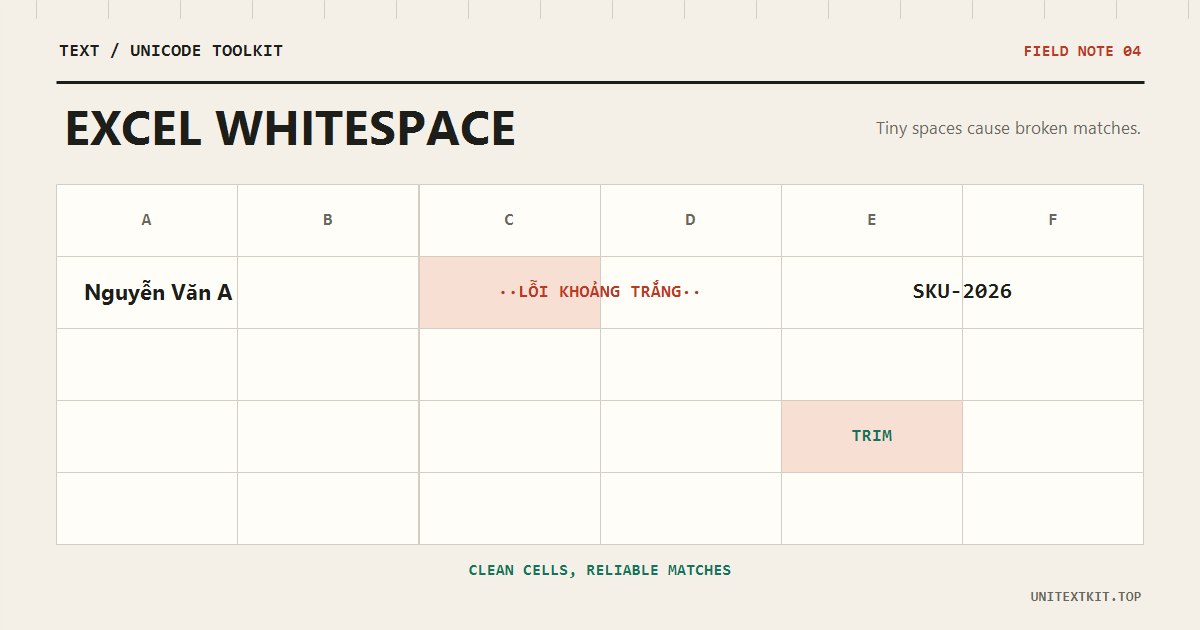
Why TRIM may not be enough
Spreadsheet TRIM functions handle many regular spaces, but copied web content may include non-breaking spaces. Copying multiple columns also produces tabs. Removing every whitespace character can join fields that should remain separate.
Copy one column at a time when possible. Use CSV or TSV export when the column structure must be preserved.
Workflow for a one-column list
Trim each line, collapse repeated spaces, remove surplus blank lines, and then deduplicate. Count the lines before and after to confirm that the reduction makes sense.
Before
  An
Bình

  Chi
After
An
Bình
Chi
When not to collapse spaces
Do not collapse fixed-width codes, space-aligned text, or formats where spacing carries meaning. Names and addresses are safer, but a sample review is still worthwhile.
Frequently asked questions
Is a tab the same as a space?
No. A tab often separates spreadsheet columns. Decide whether to preserve the columns before replacing it.
Why do identical-looking cells fail to match?
One cell may contain a non-breaking space, invisible character, or a different Unicode normalization form.